
Model-Based Definition (MBD) is revolutionizing how engineers communicate design intent—reducing dependency on 2D drawings by embedding product manufacturing information directly within 3D models. But even something as seemingly simple as creating and placing tables in Creo MBD can become a time sink.
The struggle behind the scenes
Ask any Creo user trying to build a robust MBD workflow, and you’ll hear familiar frustrations:
“Where’s the right plane to place this table?”
“Can I make this table flat-to-screen for clarity?”
“Why did it disappear when switching annotation states?”
“Is there a best practice for Bill of Materials tables in MBD?”
For something that’s meant to improve productivity, these issues often create friction.
That’s exactly where Punditas AI Advisor makes its presence felt.
Smarter guidance, right inside Creo
Punditas AI transforms Creo into a self-guided learning platform—no more switching tabs or endless YouTube hunts. While working on tables in MBD, Punditas delivers real-time, context-aware insights on the exact feature you’re using.
Imagine accessing this while still on the annotation plane setup:
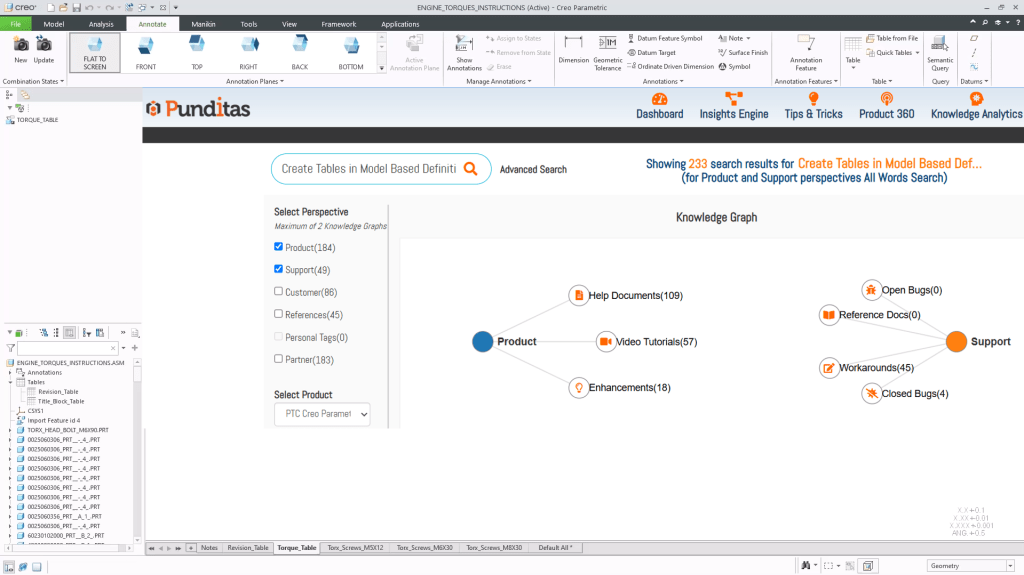
Knowledge path for “creating tables in Creo MBD”
A handpicked flow of 24 resources—videos, help docs, tutorials, community discussions—all curated and ordered for maximum impact. Think of it as an AI-crafted learning journey, not just a list of links.

How to create and format MBD tables
Where and how to position tables on annotation planes
Tips to make tables flat-to-screen for clarity
Common mistakes and how to avoid them
Knowledge graph with real-world clarity
Punditas AI’s Knowledge Graph aggregates every reliable source around your task—from community tips to PTC documentation—and visually maps it for easy access. Whether you’re defining GD&T, adding BOMs, or adjusting table placement, you get quick answers from trusted, AI-ranked content.
Why this matters to every Creo user
Eliminate trial-and-error
No more guessing. No more “Ctrl+Z” rework cycles. Punditas shows what works before you try it.
Stay in the flow
Keep working in Creo without hopping to browsers or forums. Punditas content appears right inside the design environment.
Learn at your own speed
Whether you’re a new designer or an experienced MBD user, Punditas adapts—offering bite-sized help or deep dives depending on what you need.
A sample use case: Bom table setup in MBD
You’re placing a Bill of Materials table on an annotation plane, but it’s misaligned, blocking PMI, or vanishing on zoom. Before frustration sets in:
Punditas offers a tip: “Use flat-to-screen option for better MBD readability.”
You click into the Knowledge Path and watch a 60-second video on BOM placement.
A workaround shows how to anchor the table using a repeat region constraint.
Total time saved? 20 minutes. Confidence gained? Immeasurable.
Final thought: MBD can seem complex. Learning it shouldn’t be
Creo is packed with powerful features, but the true power lies in knowing when and how to use them. Punditas AI doesn’t just explain “what”—it teaches the “why, when, and how” in a way that fits your workflow.
So next time you’re struggling with MBD tables, remember:
You don’t need to search for answers—Punditas AI brings them to you.
Explore Knowledge Path
Discover Knowledge Graph
Contact us at: contact@punditas.com
Try the Free Demo
 Punditas
Leave a comment