
As Creo evolves to support more advanced design workflows, new features like Hybrid Body Measurement help engineers get measurable results from generative designs. But let’s be honest—knowing a feature exists isn’t the same as knowing how and when to use it effectively.
That’s where Punditas AI Advisor steps in.
Whether you’re optimizing a generative model, or just trying to get a quick volume check, Punditas delivers real-time, AI-powered guidance—within Creo, as you work.
The challenge: New tools, new confusion
Creo’s new capability to measure volume, area, and projected area of hybrid bodies is a welcome enhancement. But for many users, the questions start immediately:
- Can I analyze hybrid bodies without switching tools?
- Where is the projection plane setting?
- What’s the best way to compare shape alternatives?
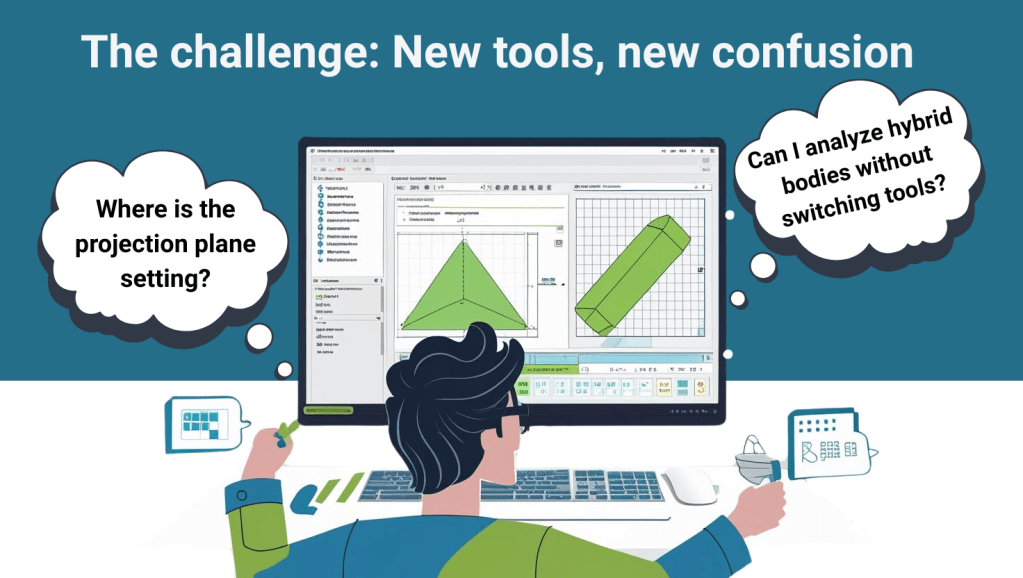
This type of confusion leads to time lost in documentation or forums—and sometimes, valuable features go unused altogether.
The solution: In-context, instant support with Punditas AI
With Punditas AI, Creo users get direct, in-context help on exactly what they’re doing—no switching windows, no guessing keywords.
Explore Knowledge Graph
The Knowledge Graph visually connects 600,000+ Creo insights, including:
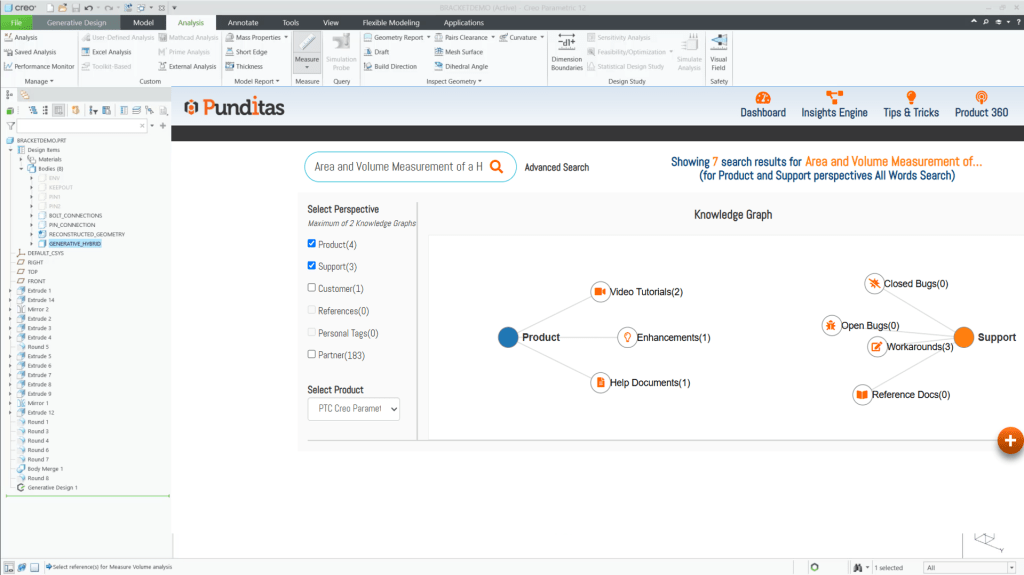
- Tutorials on volume/area analysis for hybrid bodies
- Best practices for using the Analysis tab
- Workarounds for edge cases (e.g., missing projection planes)
- Bug reports and closed-loop solutions
Just search “Area and Volume Measurement” and get a curated list—ranked by relevance and drawn from videos, discussions, help docs, and more.
Learn via Knowledge Path
Prefer structured learning? The Knowledge Path takes you through:
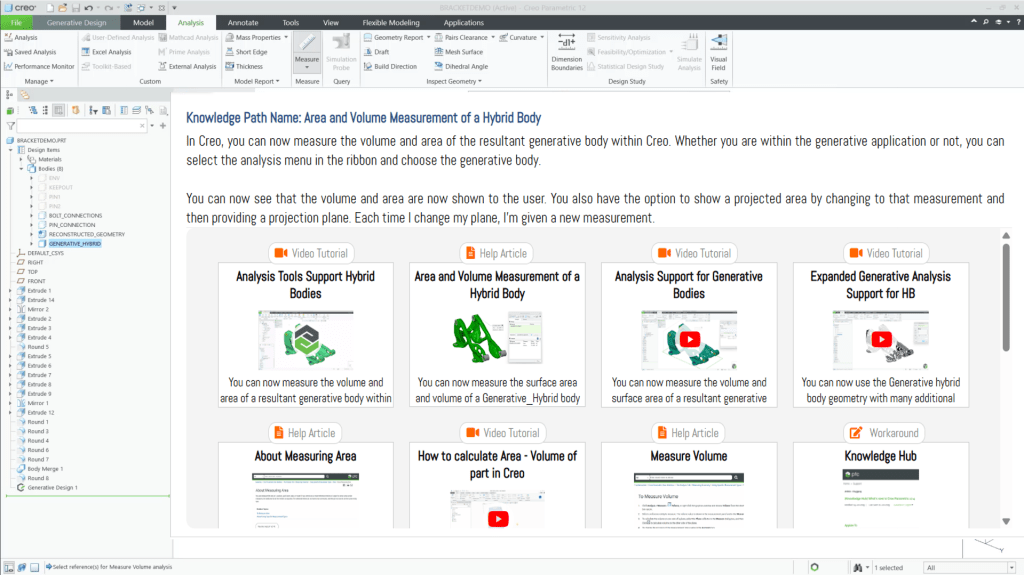
- What the new analysis features do
- When to use projected area vs. true area
- Common pitfalls to avoid
All organized step-by-step, designed for real Creo use—not just theoretical demos.
Real use case: Shape optimization with real metrics
Say you’ve run multiple generative studies for a lightweight bracket. You have a hybrid body model, but now you need data: How much material are you saving? What’s the footprint on assembly interfaces?

Without Punditas:
- You dig through release notes and help articles.
- You try measuring manually and second-guess the projection plane setup.
With Punditas:
- The right tutorial appears within Creo.
- You follow a quick Knowledge Path to confirm your setup.
- You get volume, area, and projected area without breaking your design flow.
That’s not just a time-saver—it’s a confidence booster.
The bottom line: Use Creo’s power without slowing down
Creo’s generative and hybrid modeling capabilities are powerful—but only if you can unlock them when it matters. Punditas AI Advisor ensures that Creo users spend less time searching and more time designing.
Whether you’re measuring a generative form or validating part fit, Punditas delivers answers as you work—not after you’ve lost momentum.
What is Punditas AI Advisor?
Punditas AI Advisor provides real-time guidance as you work in the Creo environment. Information on “how to use” a feature in Creo or best practices for working with Creo are presented within context, removing the need to guess or search for such information. Punditas AI driven content helps you leverage Creo to create your designs faster and with confidence.
For more information about Punditas AI Advisor, visit our website at Punditas AI or contact us at contact@punditas.com
 Punditas
Leave a comment