
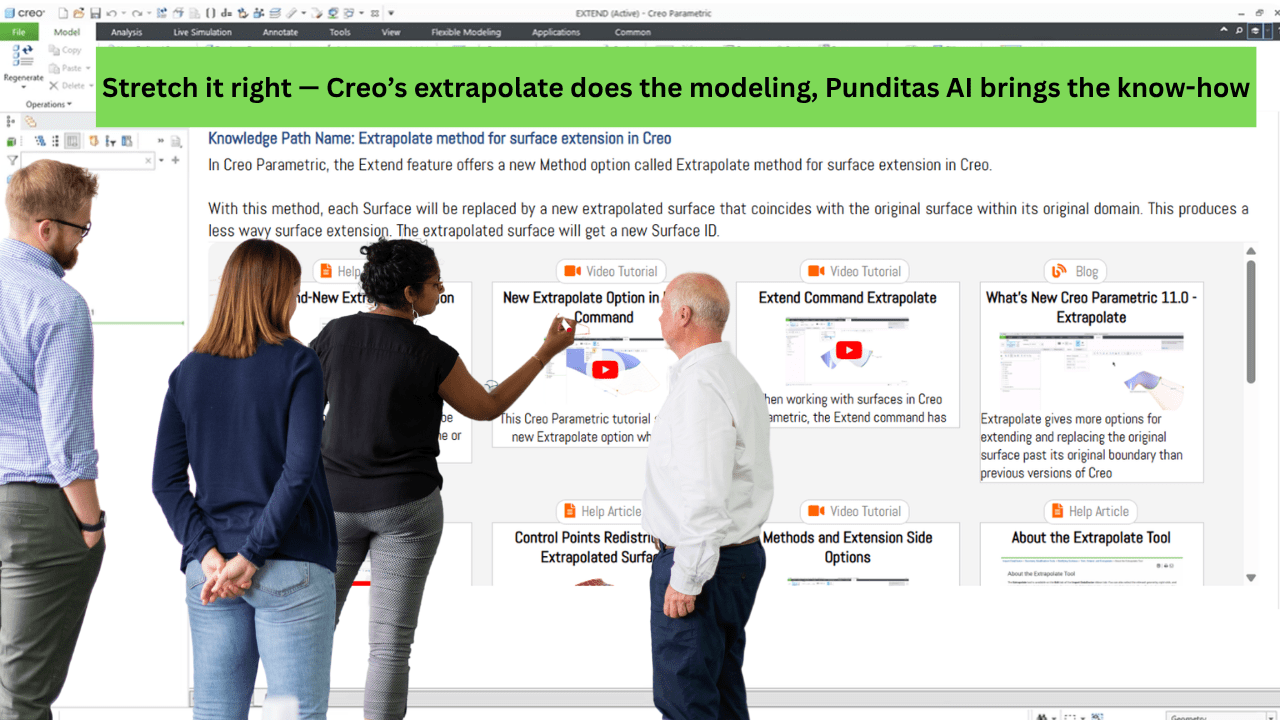
You’re extending a surface in Creo. Everything looks fine—until the preview shows a ripple, a fold, or worse, a failure. The Surface isn’t extending the way you imagined. You undo, try again, and maybe settle for a workaround that’s “good enough.”
If this sounds familiar, you’re not alone.
Surface modeling is often where great designs get bogged down—not because the tools aren’t powerful, but because you don’t always know which option will get you the result you need.
And in Creo, a powerful enhancement has been quietly added to the Extend feature: the “Extrapolate” method. But chances are, you’ve either missed it, or don’t quite know when to use it. That’s where Punditas AI Advisor changes the game.
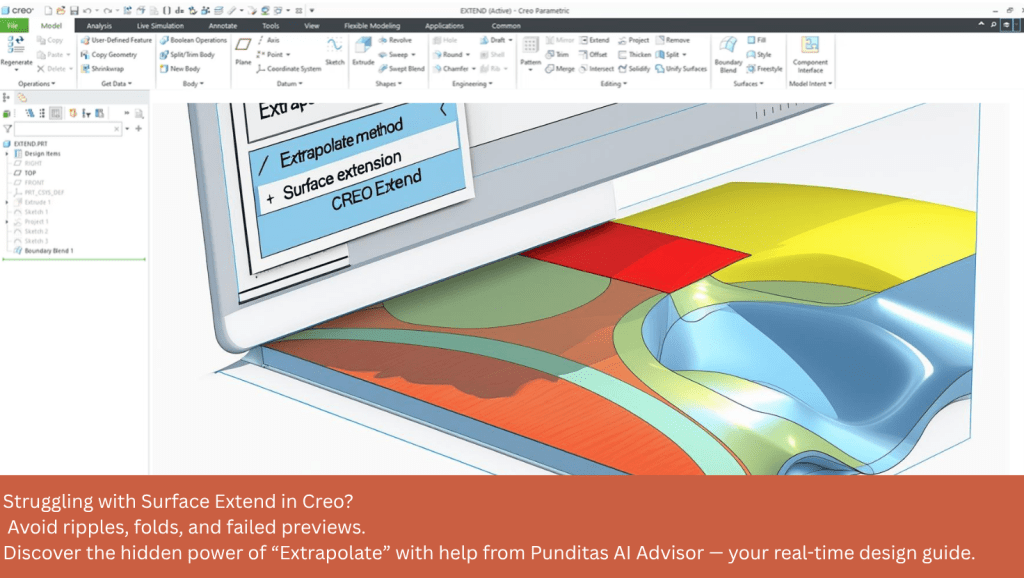
The surface extension fix you didn’t know you had
Creo’s new Extrapolate method doesn’t just extend surfaces—it does so intelligently. It replaces the selected surface with a mathematically consistent extrapolation of its existing form. That means:
- Less waviness
- No folds or inflections
- New surface ID with smooth continuity
- B-spline conversion (where applicable) for more control
It’s ideal when traditional surface extension methods fail—or when you just want a cleaner result with less manual repair afterward.
But the real issue isn’t what it does—it’s knowing that it exists, understanding when to use it, and figuring out how to apply it effectively.
AI that knows your CAD tools better than you do
Let’s be honest: searching help docs, watching outdated videos, or experimenting through trial and error isn’t how design teams should be spending time.
Punditas AI recognizes that.
When you work in Creo, Punditas runs silently in the background—detecting what feature you’re using, what problem you’re trying to solve, and then instantly surfaces only the most relevant, up-to-date insights. For example:
- Trying to extend a surface? Punditas shows latest tutorials on Extrapolate Option.
- Not sure why your model folded? It shares known issues and workarounds.
- Need clarity on the difference between analytic vs. spline surfaces? Punditas links to targeted learning material.
- Want a step-by-step learning material? Access the Knowledge Path curated for exactly that task.
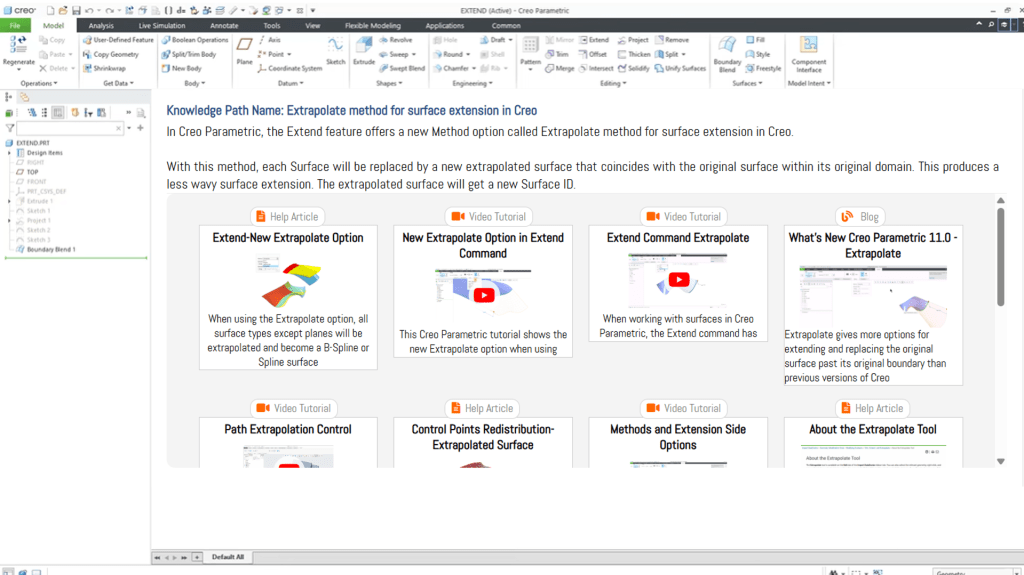
Knowledge Without the Search
Unlike traditional help systems or web searches that flood you with noise, Punditas Knowledge Graph filters through 600,000+ Creo resources and ranks them based on real user engagement.
You’re not just getting answers—you’re getting answers that have worked for other Creo users facing the exact same issue.
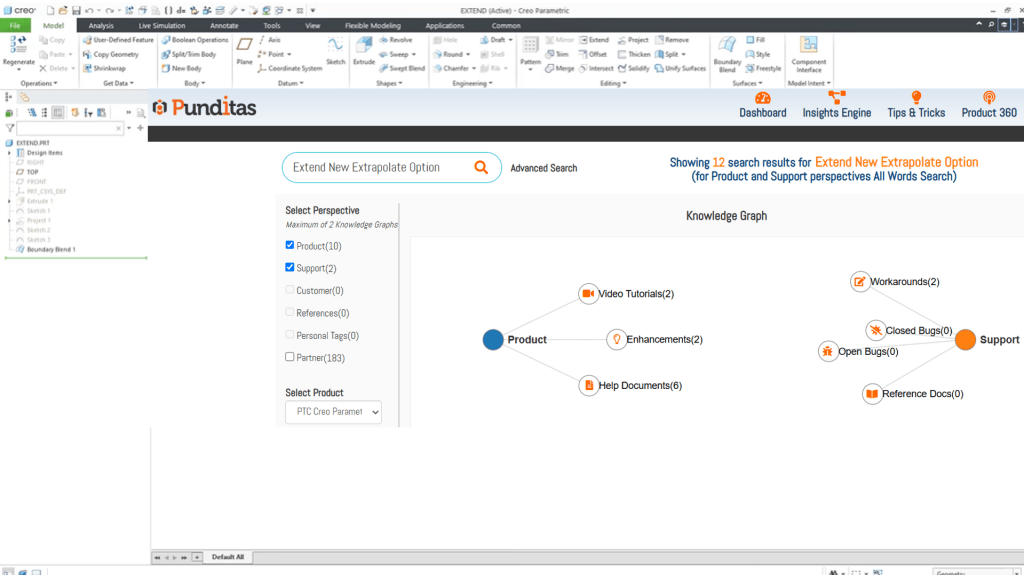
Small improvements, big productivity gains
Sometimes it’s not the flashy features that unlock value—it’s the subtle improvements, like Extrapolate, that save hours of modeling cleanup, reduce design errors, and let your team ship cleaner designs faster.
But only if your team knows they exist, knows how to use them, and can do so without breaking their design flow.
That’s exactly what Punditas AI Advisor delivers.
Final thought
In today’s fast-paced design environment, productivity isn’t just about doing more—it’s about knowing more, faster. And that means turning features like “Extrapolate” from obscure options into everyday tools.
Let AI show you what your CAD tools are truly capable of.
Try the Knowledge Path on Surface Extension
Discover Surface Modeling Tips in the Knowledge Graph
Questions? Email us at contact@punditas.com
Get Your Free Trial of Punditas AI Advisor
 Punditas
Leave a comment