
Creo continues to evolve with every release—bringing enhanced modeling features, smarter design workflows, and improved performance. But as new tools are introduced and capabilities expanded, it becomes increasingly important for users to stay informed about what’s available and how to apply it effectively.
Yet, with busy project timelines and design work always in motion, even experienced Creo users may not always get the opportunity to explore these advancements in depth.
That’s where Punditas AI steps in—with a powerful module designed to deliver timely, relevant, and role-specific insights right when they’re needed.
Introducing the tips & tricks module from Punditas AI
The Tips & Tricks module within Punditas AI is designed specifically to bridge the information gap between Creo’s powerful new features and the engineers using them. Instead of requiring users to go out and search for resources, Punditas AI brings the learning into the Creo environment itself.
Available directly for products such as Creo Parametric, Windchill PDMLink, ThingWorx, Solidworks, and Onshape, this module is structured around three tabs: Related Videos, Help, and Enhancements—each offering a unique kind of support.

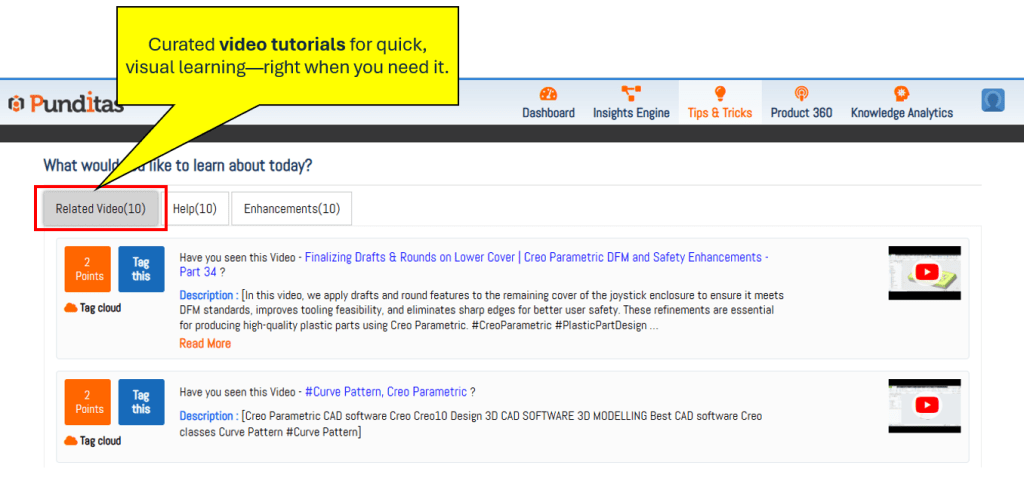
1. Related videos: Learn visually and efficiently
This tab presents a curated collection of the most up-to-date, relevant video tutorials tailored to the user’s current product. Whether you’re exploring new surface modeling tools, table creation techniques in MBD, or lattice export options, the Related Videos tab ensures you always have access to the most current learning content—without searching.
These videos are handpicked to ensure clarity, relevance, and usefulness—making it easier to grasp concepts quickly and apply them immediately.
2. Help: In-depth resources for on-the-spot guidance
When deeper understanding or step-by-step assistance is needed, the Help tab offers access to context-specific help articles, FAQs, and documentation. These resources are dynamically curated based on the product and task at hand, making it easy to find answers and apply solutions without leaving the Creo environment.
From small clarifications to full-feature walkthroughs, this tab turns learning into an integrated part of your design workflow.

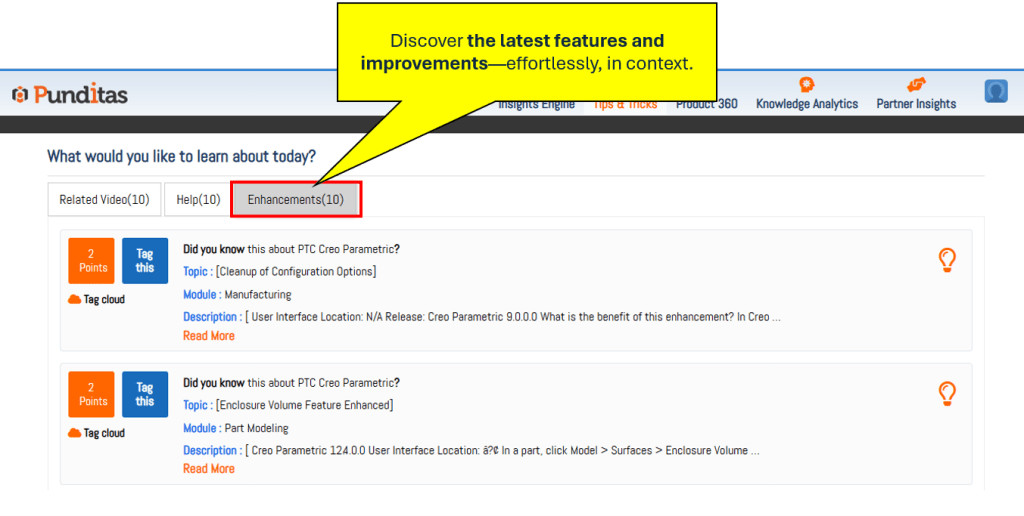
3. Enhancements: Stay informed about what’s new
Creo enhancements can be subtle or significant—but they often hold the key to faster, more efficient workflows. The Enhancements tab keeps users informed of the latest feature additions, performance improvements, and UI changes for the selected product.
This not only helps users take full advantage of new capabilities, but also fosters a culture of continuous improvement—without requiring extra effort.
Why it works: Context-aware learning, delivered intelligently
What sets Punditas AI apart is its intelligence and integration. The Tips & Tricks module doesn’t just offer random content—it understands what product you’re using, what you’re working on, and delivers only the most useful, recent, and accurate guidance.
It’s a smarter way to stay current without interrupting your design momentum.
Boost productivity through timely insight
By bringing structured, searchable, and curated knowledge directly into your workspace, Punditas AI helps Creo users make informed decisions, discover new features, and optimize daily workflows.
Whether you’re interested in exploring new enhancements or just want quick clarity on a command you haven’t used in a while, Tips & Tricks is always a click away.
What is Punditas AI Advisor?
Punditas AI Advisor provides real-time guidance as you work in the Creo environment. Information on “how to use” a feature in Creo or best practices for working with Creo are presented within context, removing the need to guess or search for such information. Punditas AI driven content helps you leverage Creo to create your designs faster and with confidence.
For more information about Punditas AI Advisor, visit our website at Punditas AI or contact us at contact@punditas.com
 Punditas
Leave a comment