
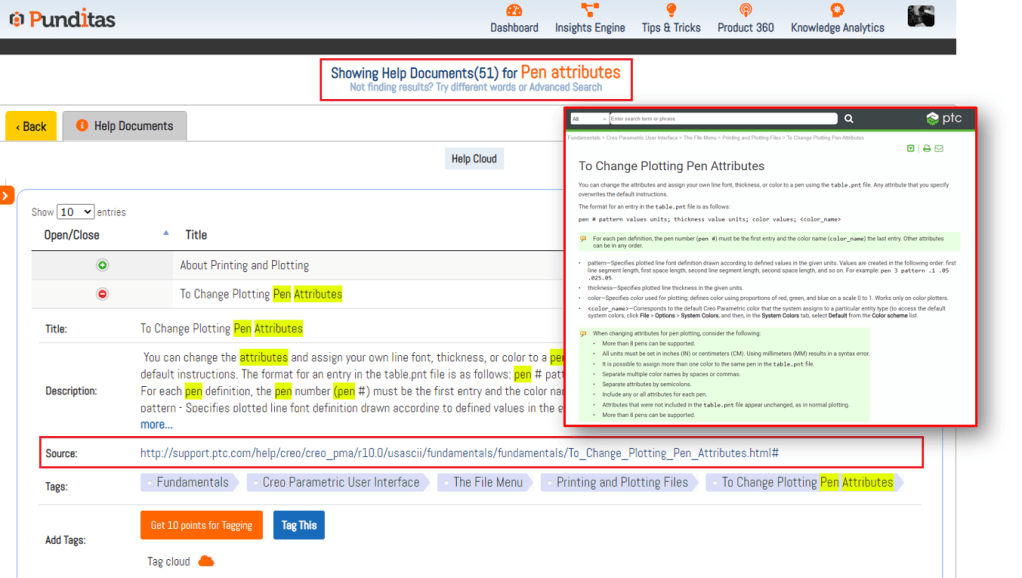
When exporting a drawing into pdf, users may observe a significant increase in line weightage, leading to thicker lines in the resulting pdf file. However, there are techniques available within the software to address this issue. Creo Parametric provides options such as pen tables and plotter configurations, which can be utilized to control and adjust line weights.
By employing pen tables, users can define specific line weight assignments for different colors, layers, or line types within their drawings. This allows for precise control over line thickness when generating the pdf output. Additionally, plotter configurations offer further customization by enabling users to specify line weight scaling factors and other plot settings, ensuring the desired line weights are accurately reflected in the exported pdf.
Utilizing pen tables and plotter configurations empowers Creo Parametric users to fine-tune line weightage during the drawing-to-pdf export process, ensuring optimal visual representation and compatibility with external viewing or printing applications.
Explore more information like this using Punditas AI’s Insights Engine
What is Punditas AI Advisor?
Punditas AI Advisor provides real-time guidance as you work in the Creo environment. Information on “how to use” a feature in Creo or best practices for working with Creo are presented within context, removing the need to guess or search for such information. Punditas AI driven content helps you leverage Creo to create your designs faster and with confidence.
For more information about Punditas AI Advisor, visit our website at Punditas AI or contact us at contact@punditas.com
 Punditas
Leave a comment