
If you’ve ever opened up the Sketcher module in PTC Creo Parametric for the first time, you probably know the feeling: excitement quickly turning into challenge. Even something as simple as setting up the grid can feel like a challenge when you’re just starting out.

Imagine this—on your first day learning Creo, you don’t even know where to find Grid settings. You hop from one browser tab to another, scrolling through outdated PDFs, YouTube tutorials, and endless forum posts. Before you know it, you’ve spent more time searching for answers than actually sketching your first design.

But what if there was a better way?
That’s exactly where Punditas AI comes in. Integrated directly inside Creo, the Insights Engine put the right knowledge in front of you—without ever leaving your design environment. No wasted clicks, no guessing if a tutorial applies to your version of Creo, and no broken learning momentum.
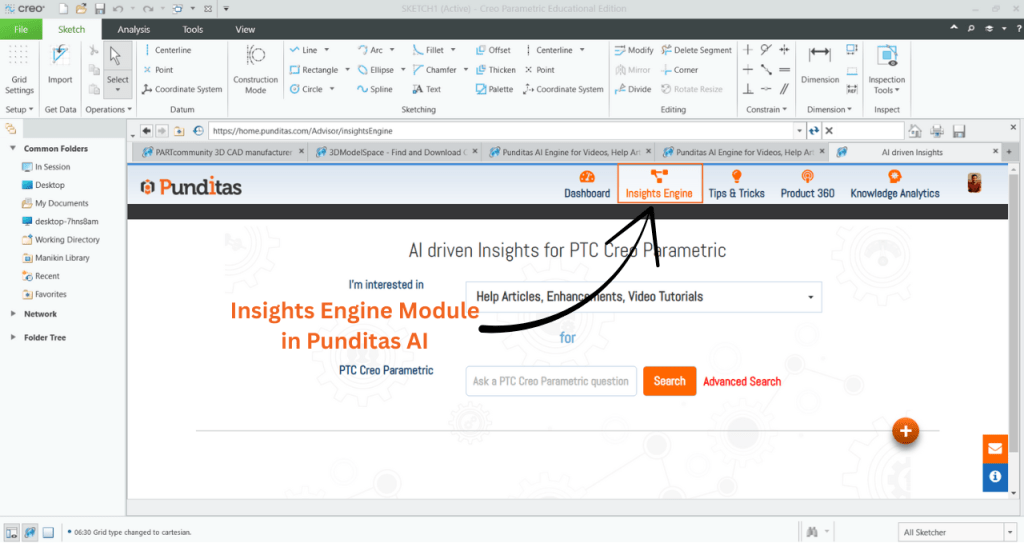
Learning made simple
Let’s say you want to customize your grid in Creo Sketcher. Instead of scanning online resources, just type “Grid settings” into the Punditas AI Insights Engine.
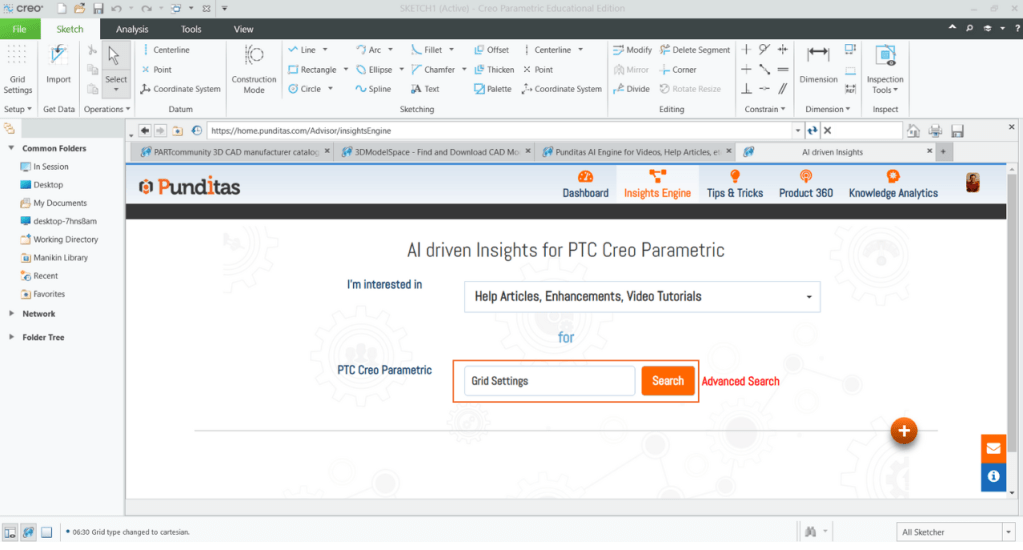
Instantly, you’ll see guidance tailored to your version of Creo. No confusion, no second-guessing—just the exact information you need to move forward with confidence.
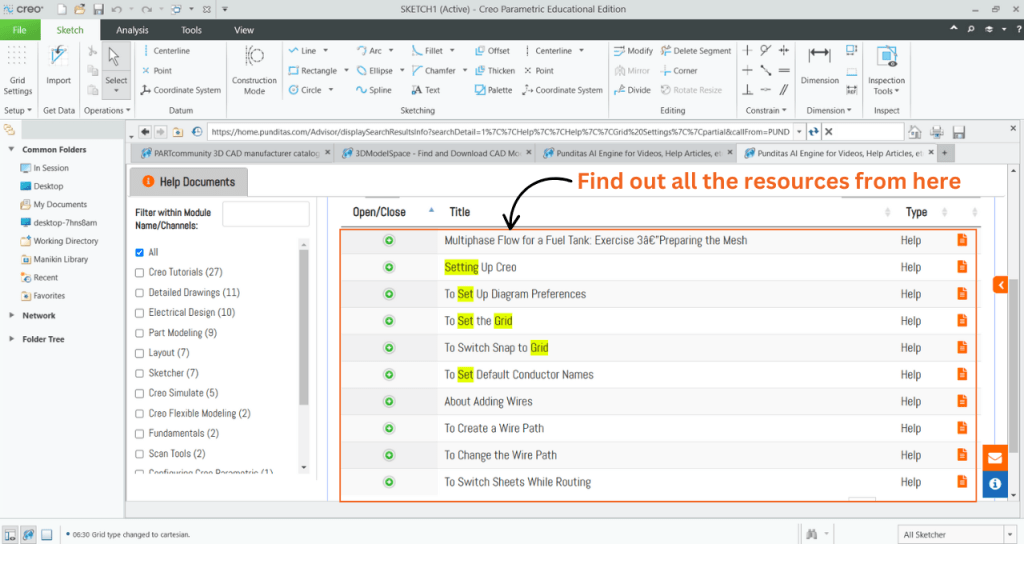
This approach works whether you are:
- A beginner learning the basics of sketching,
- An intermediate user refining your workflow, or
- An expert designer looking for quick reference points.
Punditas AI makes sure you always have the right tip at your fingertips.
Exploring grid settings in Creo Sketcher
Here’s an example of what you’ll discover through Punditas AI when working with Grid settings:
- Type: Choose between Certain or Polar grid layouts to suit your design style.
- Spacing: Define whether your grid is Dynamic or Static, depending on the precision you need.
- X-Axis & Y-Axis: Establish clear alignment references for consistent sketches.
- Set Origin: Define the starting point for all your sketching operations.
- Angle, Radial, Angular Line: Fine-tune directions and orientations with ease.
- Snap to Grid: Keep sketches accurate by letting elements align automatically.
- Set Line Style: Make sketches clearer by adjusting line visibility and styles.
Having these settings explained and accessible in context makes it much easier to get started—and even easier to keep going.
Start leveraging it today
Why wait? Start using the Punditas AI tab inside Creo today. The next time you’re in Sketcher, simply type a keyword like “Grid settings” and let the Insights Engine guide you.
You’ll quickly see how much easier it is to learn, explore, and design when help is always just one click away.
With Punditas AI, your journey with Creo Sketcher is no longer about searching for answers—it’s about discovering new possibilities and designing with confidence.
What is Punditas AI Advisor?
Punditas AI Advisor provides real-time guidance as you work in the Creo environment. Information on “how to use” a feature in Creo or best practices for working with Creo are presented within context, removing the need to guess or search for such information. Punditas AI driven content helps you leverage Creo to create your designs faster and with confidence.
For more information about Punditas AI Advisor, visit our website at Punditas AI or contact us at contact@punditas.com
 Punditas
Leave a comment