

Creo is known for its powerful design and simulation capabilities, but even frequent users don’t always uncover everything it has to offer. With each new release, PTC adds enhancements that streamline workflows, save time, and boost productivity. While some of these improvements get plenty of attention, others quietly deliver real value in the background.
Here are three hidden gems you may not know about—features that can make your work in Creo faster, smarter, and more effective.
1. Point mass in generative design
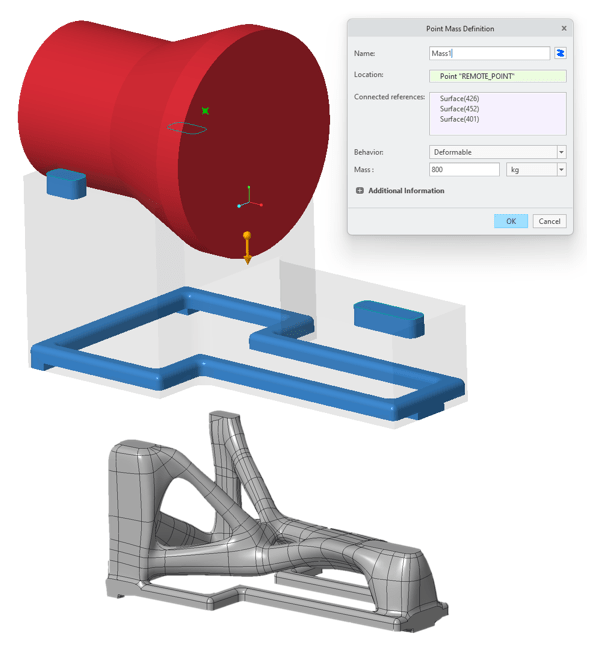
In generative design, you can now define a point mass to represent a concentrated load without the need to model the geometry of that mass. Instead of creating a specific shape with stiffness properties, engineers can place a point mass directly onto preserved geometry surfaces. This enhancement is supported in both Modal and Structural studies.
A centrifugal or acceleration load is required to support the point mass idealization, allowing engineers to study how their models behave under realistic conditions with the mass applied at a particular location.
Why it’s valuable:
- Apply mass loads without creating extra geometry.
- Capture design intent more effectively while preserving accuracy.
- Streamline studies for scenarios where detailed geometry isn’t necessary.
This enhancement reduces unnecessary modeling work while still delivering reliable simulation results.
2. Smarter drawing tree management
If you spend time navigating drawings in Creo, you know how important it is to keep views organized and accessible. A set of new enhancements makes this much easier.
Now you can configure tooltips to display the exact information you want in a drawing view. Right-click a view and select Summary for View to see a complete snapshot of its details. You can also sort the Drawing Tree in different ways: by view models, by parent views, or by both. For maximum flexibility, you can even keep the tree unsorted.
On top of that, Creo 7.0 expands the Model Tree column concept into the Drawing Tree. You can add various columns to see more types of information directly inside the tree, making it simpler to understand relationships between views.

Why it’s valuable:
- Quickly interpret the structure of your drawing views.
- Gain faster access to view-specific details.
- Save time by eliminating the need to manually query drawing information.
For engineers working on large or complex drawings, these enhancements bring welcome clarity and efficiency.
3. Modernized Project command in Sketcher
The Project command in Sketcher has been modernized with a new rule called All curves in feature, in addition to the existing Tangent, Partial loop, and Complete loop rules.
Here’s how it works: select a curve entity as an anchor, and the All curves in feature rule automatically determines the owner feature of that curve. It then collects all other curves created by the same feature. This makes it far easier to select and project complex curve sets.
The rule is evaluated during the initial projection, after which the curve collection is split into multiple individual chain collections, each creating its own references.
Why it’s valuable:
- Simplifies curve selection for complex sketches.
- Saves time compared to manually selecting multiple curves.
- Improves accuracy by automatically identifying the full set of related geometry.
This enhancement ensures smoother workflows when dealing with imported sketches, curve features, or intricate profiles.
Wrapping up
These three features—Point Mass in Generative Design, smarter Drawing Tree management, and the updated Project command in Sketcher—might not make headlines, but they can significantly improve efficiency and precision in everyday engineering tasks.
By taking advantage of these lesser-known capabilities, engineers can reduce manual work, streamline complex processes, and focus on what really matters: creating better designs faster.

The real power of Creo often lies in the details. Exploring and adopting these hidden features can help you stay one step ahead in both productivity and innovation.
What is Punditas AI Advisor?
Punditas AI Advisor provides real-time guidance as you work in the Creo environment. Information on “how to use” a feature in Creo or best practices for working with Creo are presented within context, removing the need to guess or search for such information. Punditas AI driven content helps you leverage Creo to create your designs faster and with confidence.
For more information about Punditas AI Advisor, visit our website at Punditas AI or contact us at contact@punditas.com
 Punditas
Leave a comment