You can now import inseparable assemblies from the standard import profile dialog box. Note: 1.When you convert the Unite Creo Wrapper to a Creo model, the inseparable assembly is extracted into individual Creo files. 2. Currently, Creo does not support the export of inseparable assemblies to other formats. User Interface: File > Options > Data... Continue Reading →
Repeat Region support for inseparable assemblies and embedded components
With this enhancements, you can decide if you want to include or exclude embedded components from their repeat region tables. This allows you to control exclusion of embedded components in the repeat region BOMs. It is useful if you have converted some models to be inseparable assemblies or embedded components and want to list them... Continue Reading →
New construction mode in Creo 8.0
The new construction mode in Creo 8.0 allows you to sketch reference geometry with phantom lines, before you create the final geometry. This mode supports construction lines, arcs, rectangles, etc. This enhancement increases the variety of construction mode geometries. In addition, there is a new shortcut menu option that allows you to toggle the already... Continue Reading →
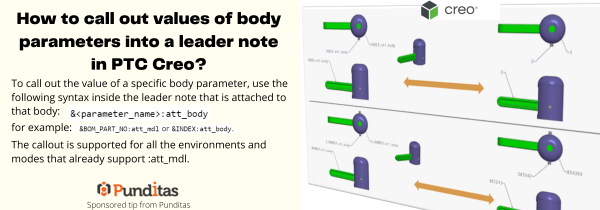
How to call out values of body parameters into a leader note in PTC Creo?
To call out the value of a specific body parameter, use the following syntax inside the leader note that is attached to that body: &<parameter_name>:att_body for example: &BOM_PART_NO: att_mdl or &INDEX: att_body The callout is supported for all the environments and modes that already support :att_mdl. ptccreo.punditas.com
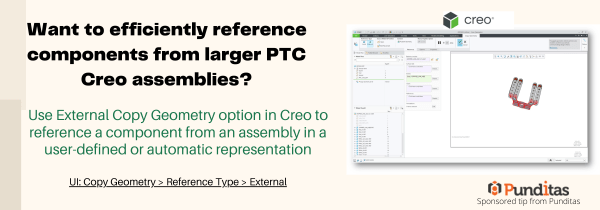
Want to efficiently reference components from larger PTC Creo assemblies?
Use External Copy Geometry option in Creo to reference a component from an assembly in a user-defined or automatic representation UI: Copy Geometry > Reference Type > External ptccreo.punditas.com
How to easily add Standard text symbols in PTC Creo?
With Creo 8.0, text symbol pallet is easily accessible for datum feature symbol (DFS) annotations. This allows you to add standard text symbols to a datum feature symbol annotations UI: Annotate -> Datum Feature Symbol ->place DFS -> Select DFS-> activate text field ->Symbols ptccreo.punditas.com
Did you know that Creo now uses absolute accuracy by default?
Starting with Creo 7.0, Creo Parametric uses absolute accuracy instead of relative accuracy. The default accuracy values are 0.00039 inches and .01 millimeters. The template files are also adjusted so that new empty models are created by default with absolute accuracy. Template files use the following naming schemes: Absolute accuracy uses the new template files by default.... Continue Reading →
Did you know that you can exclude child annotations based on the parent status in Creo 6.0?
Creo Parametric 6.0 added a very useful feature to start allowing us to exclude annotations from our design and graphics when their parent feature is no longer available. Child annotations can be excluded when the parent feature is not available in the following situations 1. Excluded by family table 2. Excluded by simplified representation or Family... Continue Reading →
Delaunay triangulation, Stochastic lattices and Additive Manufacturing in Creo
PTC introduced Stochastic lattices (random lattices) in Creo Parametric 6.0. This first implementation of the stochastic lattices used Voronoi diagram algorithm. Voronoi is a common algorithm when you want a lattice to conform to bionic shapes. However, starting with Creo Parametric 7.0.0.0, Delaunay triangulation was introduced. The Delaunay triangulation generates a set of triangles to use... Continue Reading →
Did you know that you can use Bodies as design tools for Multibody Part Design?
In Creo 7.0 we can now create and use bodies that are intended to act as modification tools to change geometry in other design bodies. Using these operations increases productivity by applying faster and easier design workflows and reducing the need to switch to surface or quilt-based workflows and tools. Geometry creation tools such as Extrude or Revolve... Continue Reading →