Starting with Creo 8.0, the Hole feature provides enriched thread handling options for thread length and intersection control. You use the following thread depth control options for additional flexibility : Through ThreadBlindTo Reference Note : The Through Thread option is typically enabled and available for the following geometry dependent drill depth options : Drill up to next surfaceDrill... Continue Reading →
How to do fluid study with a steady state solution in PTC Creo?
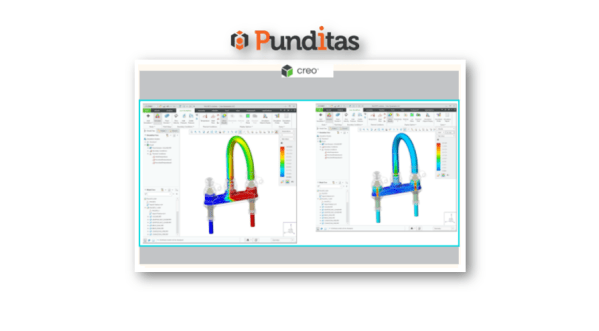
A new functionality has been added to support steady state fluids in Creo Simulation Live CFD Analysis. Steady state is a condition when the fluid properties in the system do not change. This enhancement provides an equilibrium solution when the fluid is not changing. The default result for a Creo Simulation Live fluids study is a steady state solution.... Continue Reading →
How to use the improved Freestyle Align Function in PTC Creo?
The Freestyle Align function has been improved, resulting in a higher quality surfaces. Now the vertices no longer behave like a vertex creases by forcing the geometry vertices to align with the control mesh vertices. A geometry vertex position is determined by its location with respect to the align reference curve, resulting in an optimal smooth surface.... Continue Reading →
How to create datum planes with a preconfigured default size in PTC Creo?
Previously, the datum planes with large sizes cluttered the graphical model presentation in Creo, and you had to manually adjust their sizes. Now you can control the default datum size in one of the following ways – The default size is automatically calculated to fit the model outline (as it was previously).The default size is... Continue Reading →
What is cosmetic Branch Tape Feature in PTC Creo?
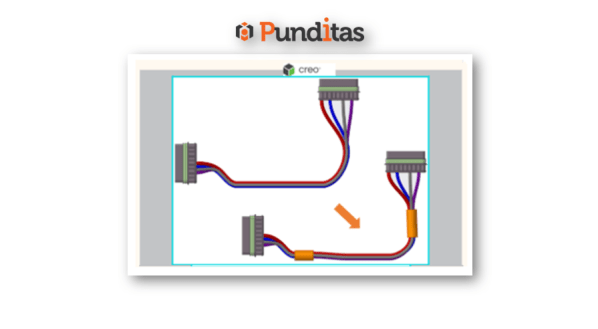
The new Branch Tape cosmetic feature represents an electrical tape wrapped around wires and junctions, and binds them together using advanced placement capabilities. A branch tape can be wrapped around wires, cables, bundles, and stiff shrinks. You can specify an overlap factor parameter that defines a width % for each wrap of a tape. You... Continue Reading →
What is Stiff Shrink Feature in PTC Creo?
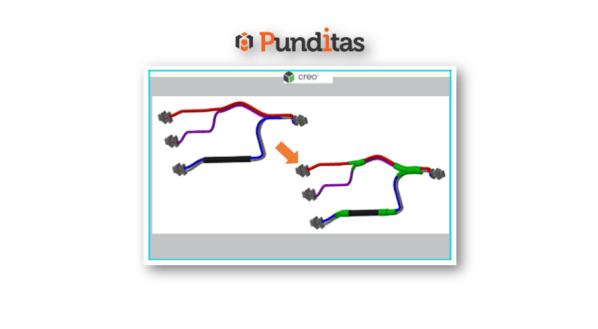
A new Stiff Shrink feature has been added to Cabling with Creo 8.0. The Stiff Shrink sheath feature allows you to route multiple cables and wires through it. Unlike the Bundle feature, the Stiff Shrink feature does not bend and remains straight along its axis. You can first create a Stiff Shrink feature by using... Continue Reading →
How to Spotlight profile within PTC Creo using Punditas AI?
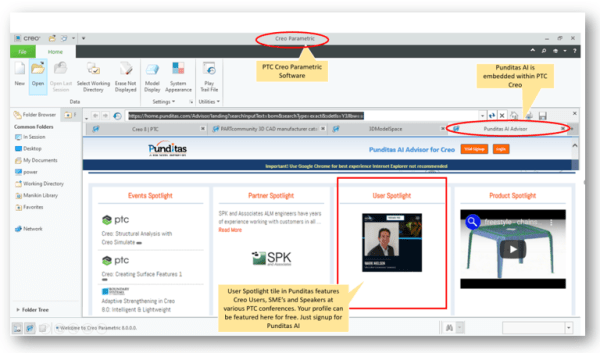
Users profiles are featured on the Punditas landing page within Creo Parametric as shown below. A new User profile is loaded each time the landing page is reloaded or refreshed How to feature your profile within Punditas AI as shown below? To showcase your profile in Punditas AI, follow the below steps Featured profile in... Continue Reading →
How do you create your User Profile in Punditas AI?
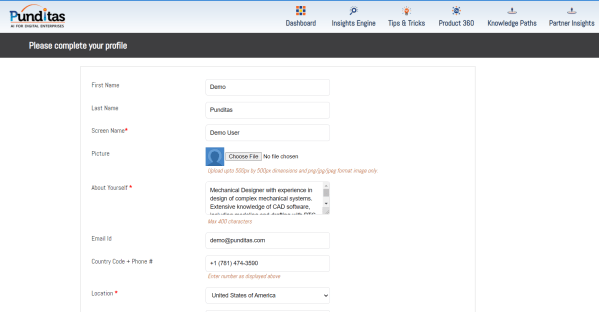
Follow the below steps to create your profile in Punditas AI Step 1: Register/Signup for Punditas AI if you have not already signed up Step 2: Login to Punditas Login Page in Punditas AI Step 3: If you are logging into Punditas AI for the first time, you will see the below page to complete... Continue Reading →
Did you know about the new Dimensioning Scheme group for groove/butt welds in PTC Creo?
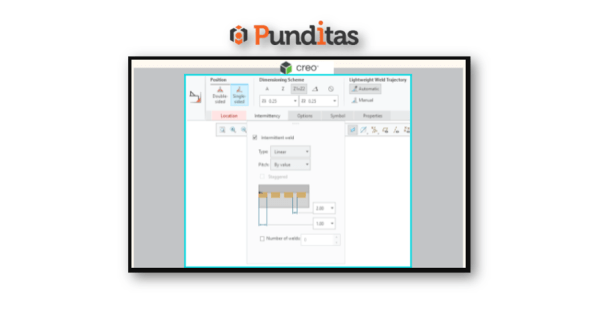
The Fillet Weld dashboard has been updated with Creo 8.0. A new Dimensioning Scheme group has been created for groove/butt welds. The dashboard contains the following groups: PositionTypeEdge PreparationWeld Size SchemeLightweight Weld Trajectory User Interface: Click Applications > Welding Punditas AI Advisor for Creo Punditas AI Advisor provides real-time guidance as you work in the Creo environment. Information on “how to use”... Continue Reading →
Punditas AI Advisor now supports Creo 7.0.5.0
PTC released Creo 7.0.5.0 recently. Punditas AI Advisor now supports this latest version of Creo 7.0.5.0. Punditas AI allows users to learn more about “How”, What” and “Why” of these enhancements through Product 360 module. The picture below shows the Module groups and the corresponding enhancements added within each group. To try this out, please... Continue Reading →