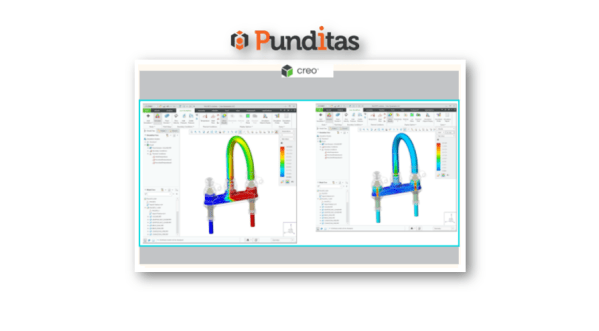
A new functionality has been added to support steady state fluids in Creo Simulation Live CFD Analysis. Steady state is a condition when the fluid properties in the system do not change. This enhancement provides an equilibrium solution when the fluid is not changing. The default result for a Creo Simulation Live fluids study is a steady state solution.... Continue Reading →
How to use the improved Freestyle Align Function in PTC Creo?
The Freestyle Align function has been improved, resulting in a higher quality surfaces. Now the vertices no longer behave like a vertex creases by forcing the geometry vertices to align with the control mesh vertices. A geometry vertex position is determined by its location with respect to the align reference curve, resulting in an optimal smooth surface.... Continue Reading →
How to create datum planes with a preconfigured default size in PTC Creo?
Previously, the datum planes with large sizes cluttered the graphical model presentation in Creo, and you had to manually adjust their sizes. Now you can control the default datum size in one of the following ways – The default size is automatically calculated to fit the model outline (as it was previously).The default size is... Continue Reading →
How to Spotlight profile within PTC Creo using Punditas AI?
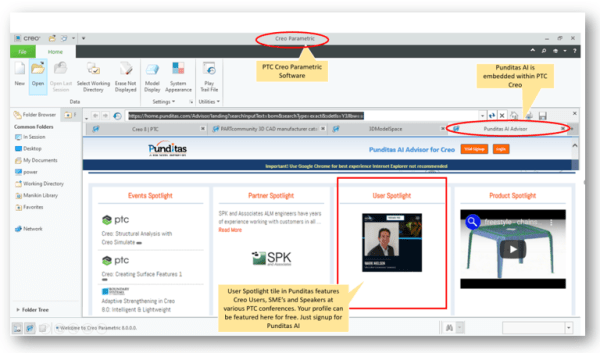
Users profiles are featured on the Punditas landing page within Creo Parametric as shown below. A new User profile is loaded each time the landing page is reloaded or refreshed How to feature your profile within Punditas AI as shown below? To showcase your profile in Punditas AI, follow the below steps Featured profile in... Continue Reading →
How do you create your User Profile in Punditas AI?
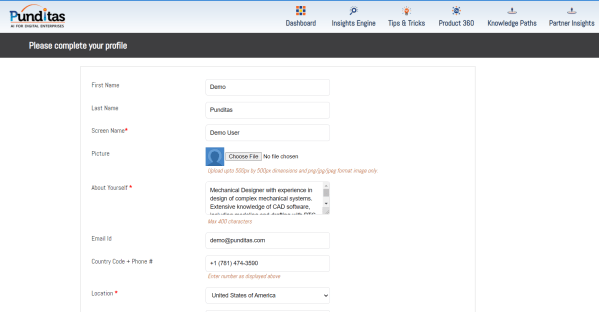
Follow the below steps to create your profile in Punditas AI Step 1: Register/Signup for Punditas AI if you have not already signed up Step 2: Login to Punditas Login Page in Punditas AI Step 3: If you are logging into Punditas AI for the first time, you will see the below page to complete... Continue Reading →
Did you know about the new Dimensioning Scheme group for groove/butt welds in PTC Creo?
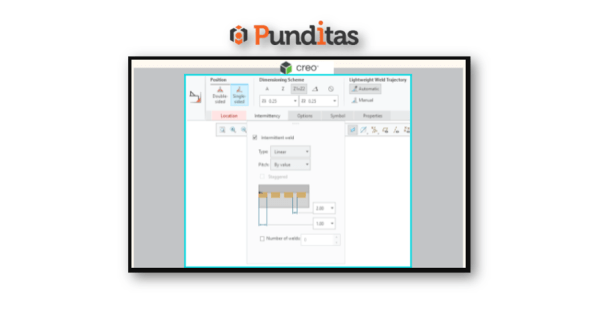
The Fillet Weld dashboard has been updated with Creo 8.0. A new Dimensioning Scheme group has been created for groove/butt welds. The dashboard contains the following groups: PositionTypeEdge PreparationWeld Size SchemeLightweight Weld Trajectory User Interface: Click Applications > Welding Punditas AI Advisor for Creo Punditas AI Advisor provides real-time guidance as you work in the Creo environment. Information on “how to use”... Continue Reading →
Punditas AI Advisor now supports Creo 7.0.5.0
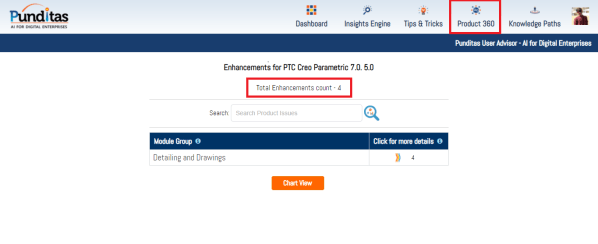
PTC released Creo 7.0.5.0 recently. Punditas AI Advisor now supports this latest version of Creo 7.0.5.0. Punditas AI allows users to learn more about “How”, What” and “Why” of these enhancements through Product 360 module. The picture below shows the Module groups and the corresponding enhancements added within each group. To try this out, please... Continue Reading →
Punditas AI Advisor now supports Creo 8.0.1.0
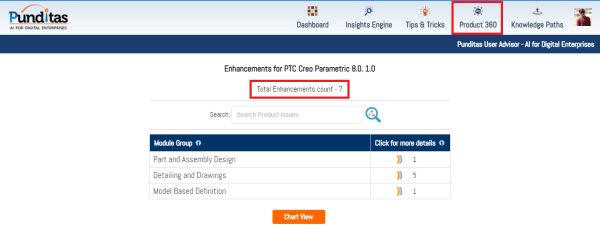
PTC released Creo 8.0.1.0 recently. Punditas AI Advisor now supports this latest version of Creo 8.0.1.0. Punditas AI allows users to learn more about “How”, What” and “Why” of these enhancements through Product 360 module. The picture below shows the Module groups and the corresponding enhancements added within each group. To try this out, please... Continue Reading →
Redefine the locations and type of probes in PTC Creo
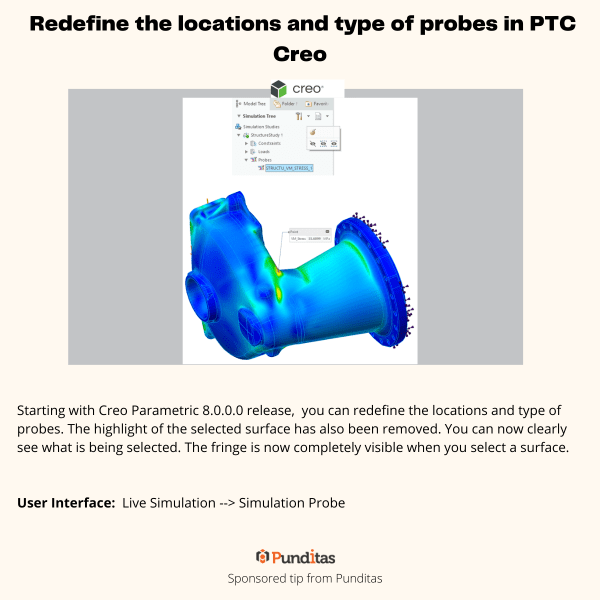
Starting with Creo Parametric 8.0.0.0 release, you can redefine the locations and type of probes. The highlight of the selected surface has also been removed. You can now clearly see what is being selected. The fringe is now completely visible when you select a surface. User Interface: Live Simulation --> Simulation Probe For more information about Punditas... Continue Reading →
Selective Removal of Dangling Beams in PTC Creo
This Improvement allows one to control which surfaces should be used to remove the dangling beams. Eliminating the old on/off approach, this enhancement provides a more flexible way to remove dangling beams and a better control over the lattice creation. User Interface: Lattice --> Cell Fill --> Dangling beams --> Keep/Remove/Remove by surfaces For more... Continue Reading →