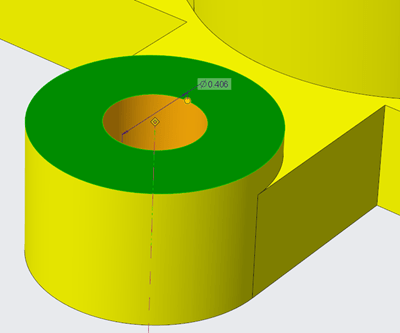
PTC has improved the workflow for creating radial dimensions. The Typical creation of radial dimension provides upto 4 flip states that represents different witness line and arrow configurations. Starting with Creo 5.0, the definition of flip states is improved to provide better default states, depending on the position of the pointer. This provides visual feedback... Continue Reading →
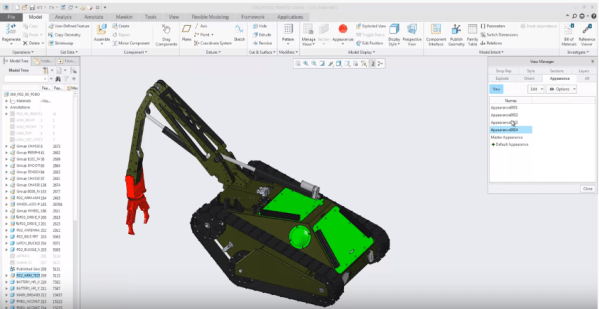
Did you know that you can assign different appearances to the same component in Creo?
We can now capture multiple appearance combinations for the same part and assembly and easily switch between appearance variants. Use Appearance state instead of Combined state. To do this goto View Manager to set the appearance state of your component. You can also use appearance states inside combined states and switch between... Continue Reading →
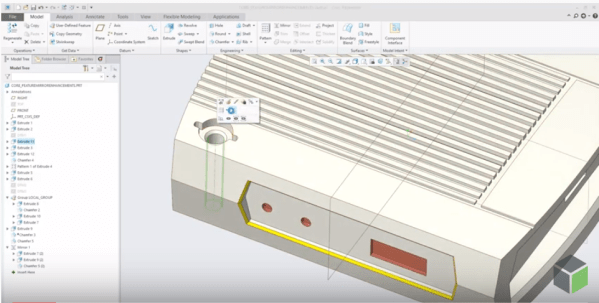
Did you know that mirroring of features in Creo is improved?
Starting with Creo Parametric 5.0 release, the workflow for mirroring of features is enhanced. Mirror workflow provides an intuitive preview and increased flexibility during redefinition. Also, Mirror tool is faster in definition and re-definition of mirror feature. Preview in the graphics windows is available during creation or redefinition of feature for quick visual feedback on... Continue Reading →
Punditas AI Advisor now supports Creo 4.0 M120
PTC released Creo 4.0 M120 recently. Punditas AI Advisor now supports this latest version of Creo 4.0 M120. Punditas AI allows users to learn more about “How”, What” and “Why” of these enhancements through Product 360 module. The picture below shows the Module groups and the corresponding enhancements added within each group. To try this... Continue Reading →
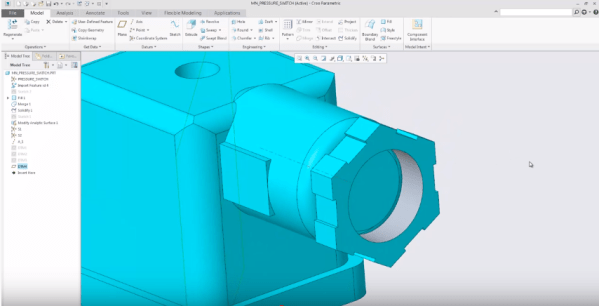
Did you know that you can create a midplane between selected references in Creo?
Datum Plane tool in Creo provides an option to create a mid-plane between selected references. The enhancement has made it easier to understand how constraints can be changed. Also its faster to define datum planes especially in conjunction with operations such as Mirror. Depending on the geometric situation, the midplane can be created parallel to... Continue Reading →
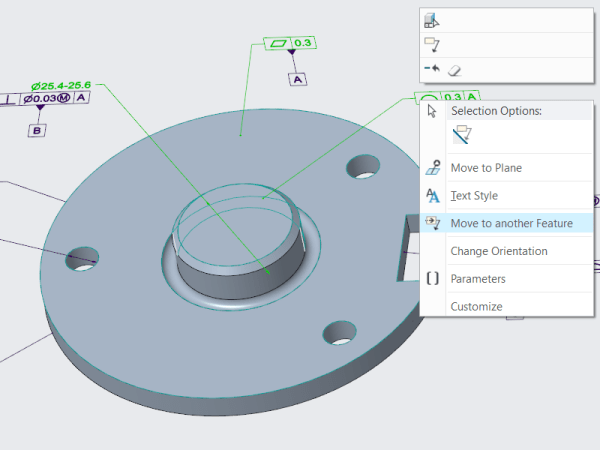
Did you know that you can you reorganize the structure of Annotation Elements in Creo?
As a designer, you will want to reorganize the structure of the Annotation Elements (AE) by easily moving an AE from its owner Annotation Feature (AF) to a different AF In earlier releases of Creo Parametric, you must edit the Annotation Features to manage the owners of the various annotation elements in your design. Starting... Continue Reading →
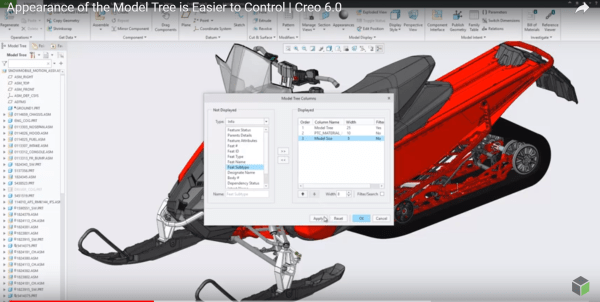
Did you know that you can now control the appearance of Model Tree in Creo?
I think this is a neat enhancement in Creo. With Creo 6.0 release, the Model Tree appearance can be controlled and configured by users Setting Up the Model Tree You can define the width of the model tree - add columns and keep the Model Tree column at the default width or the width you... Continue Reading →
What is Chart Tool in Creo Parametric and how does it work?
A new modernized Chart tool replaces Graph tool starting with Creo Parametric 6.0 release. Chart tool has more options and provides more control over the chart settings. Chart-Tool can be used to view and customize different types of graphs. Once the graph is displayed, the graph can be changed for border colors, fonts, background colors,... Continue Reading →
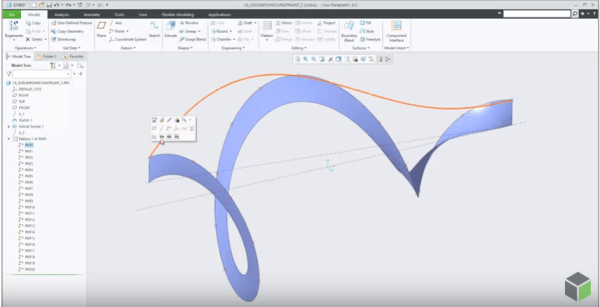
How to project a Datum Point onto a planar surface in Creo Parametric?
In Creo Parametric 6.0, the Datum point feature is enhanced. A constraint option is added to the datum point feature to project a datum point, a vertex or a curve endpoint onto a planar surface, datum plane, straight edge line or axis. Also, note that datum points created with project constraints can also be used... Continue Reading →
Did you know that display of dimensions is improved in Creo 6.0?
Starting with Creo Parametric 6.0.0.0, there are new configuration options for displaying dimensions. This improves the visibility of objects that are frequently used in the graphics window. To control the appearance of the background for dimensions use the following new configuration options dim_background —Shows the background under dimensions when new dimensions appear. Values are always,... Continue Reading →